In the second part of this two-part project, we’re going to create a version of our Rock, Paper, Scissors game which you can play, single-player, against your micro:bit! If you haven’t completed part one, you should give that a go first!
Part 2: The One-Player Game
So, we’ve already built a version of Rock, Paper, Scissors that allows us to play a game against a friend, where we both have a micro:bit we can use. In this version we’re going to code up a game which we can play against our micro:bit!
First, a couple of things you need to know about how games work.
Randomness
Games are games because they are unpredictable. Most games have some element of randomness.
Take a look at this screenshot from Pancake Panic, a game I worked on.
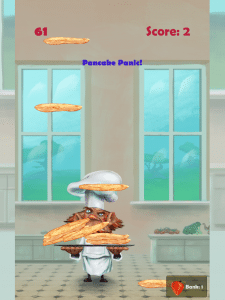
In this physics-based game, you have to catch as many pancakes as you can. Each time you play the game, the pancakes fall from different places. They don’t always fall from the same place. And there’s no pattern to it. Each pancake’s positon is completely random. Every time you play. You can’t learn an order, because there is no order.
Most games work like this! Players in Fifa games react differently, each world you create in Minecraft is different, enemies in the latest Sonic and Mario games try different ways or catching you!
How does this work?
The pancakes in Pancake Panic are created with a random x position so they appear in a different horizontal position as they’re made. With games such as Mario, it’s slightly more complex, but it is still the same idea. In games where enemies react differently, a random number is generated and then some code is written to react to this random number.
For example. Let’s get a random number which is either 1, 2, or 3. If this number is 1, then attack from the left. If the number is 2, then attack from the right. If the number is 3, then run away from the player instead!
See how that works? The player never sees the code, so to the player the enemy looks intelligent, as if it is thinking for itself.
We’re going to use this method in our app.
Variables
A variable is a way of storing some simple information which we can react to. A variable is a way of giving something a name and then we can use that name in our code.
For example, in Sonic the Hedgehog, the programmer would create a variable called rings, and rings would start at 0. Every time the player catches a ring, there will be some code that will add 1 to whatever rings currently is. If the number of rings is equal to 100, then the player gets an extra life.
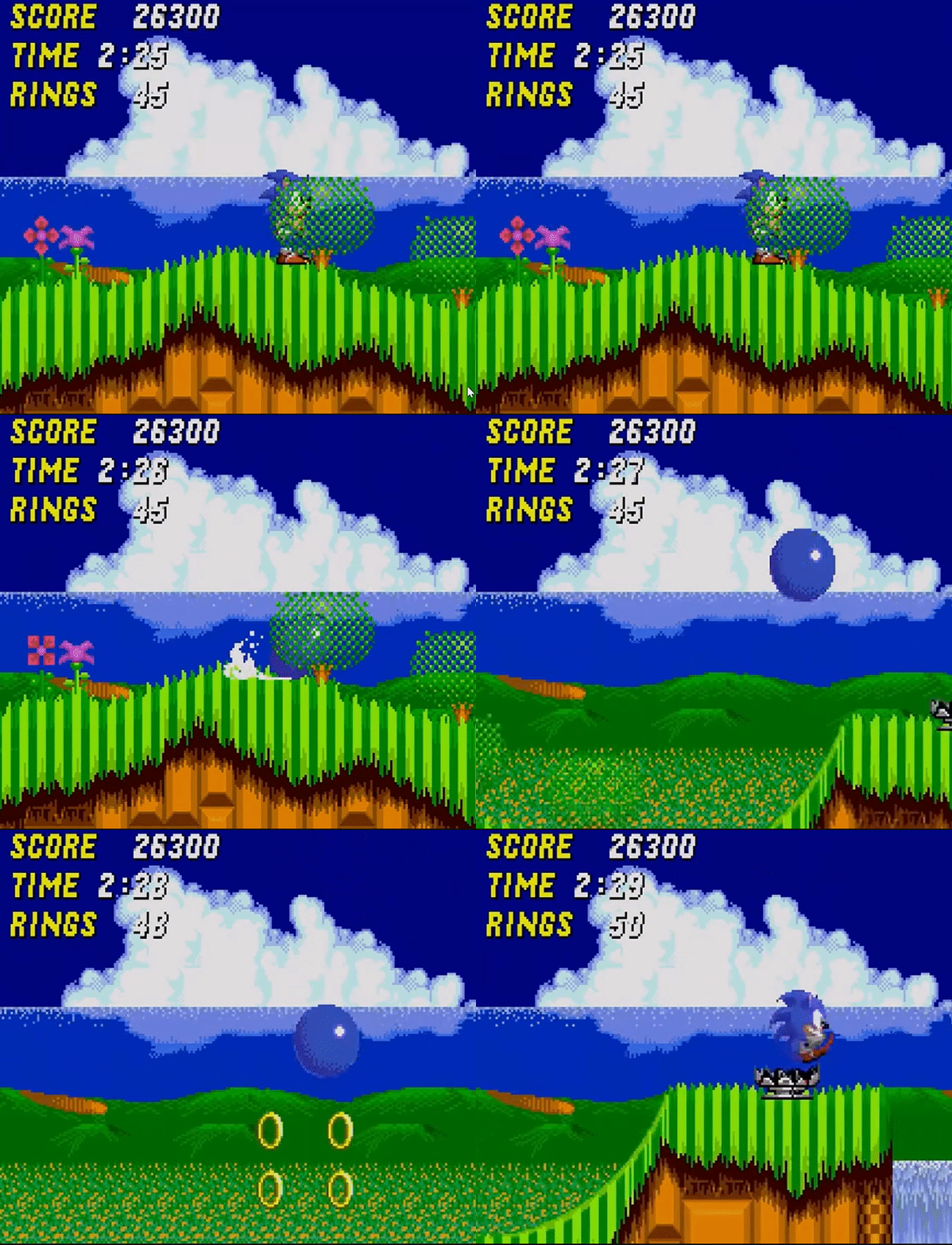
Look at how Sonic’s ring count increases as he collects rings.
See how that works? We’re naming a variable, and then modifying the number, and referencing it over time.
If any of that sounds confusing, don’t worry! You’ll see how we use random numbers and variables to make our simple One-Player Rock, Paper, Scissors game!
The first thing we’re going to do is set up a button which we’ll press when we’re ready to play Rock, Paper, Scissors against our micro:bit.
I’m going to drag an On Button A Pressed block from our Input menu, onto my coding space.
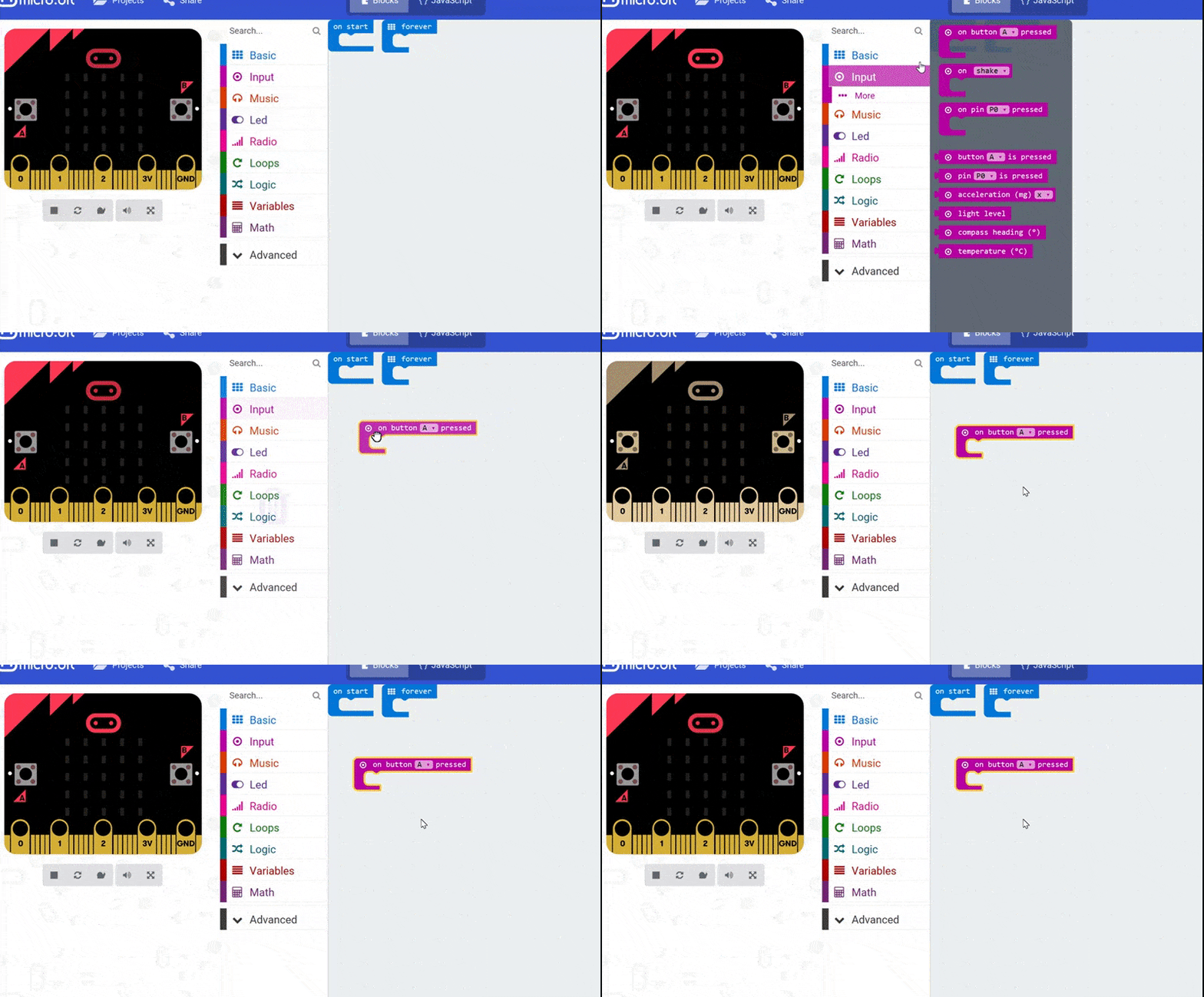
Let’s grab an On Button A Pressed block from the Input menu.
What I’m going to do now is set up a variable which will represent the micro:bit’s selection (what it chooses to play on its turn).
I’m going to click on the Variables menu and grab Set Item to 0 and drag that into my existing code block.
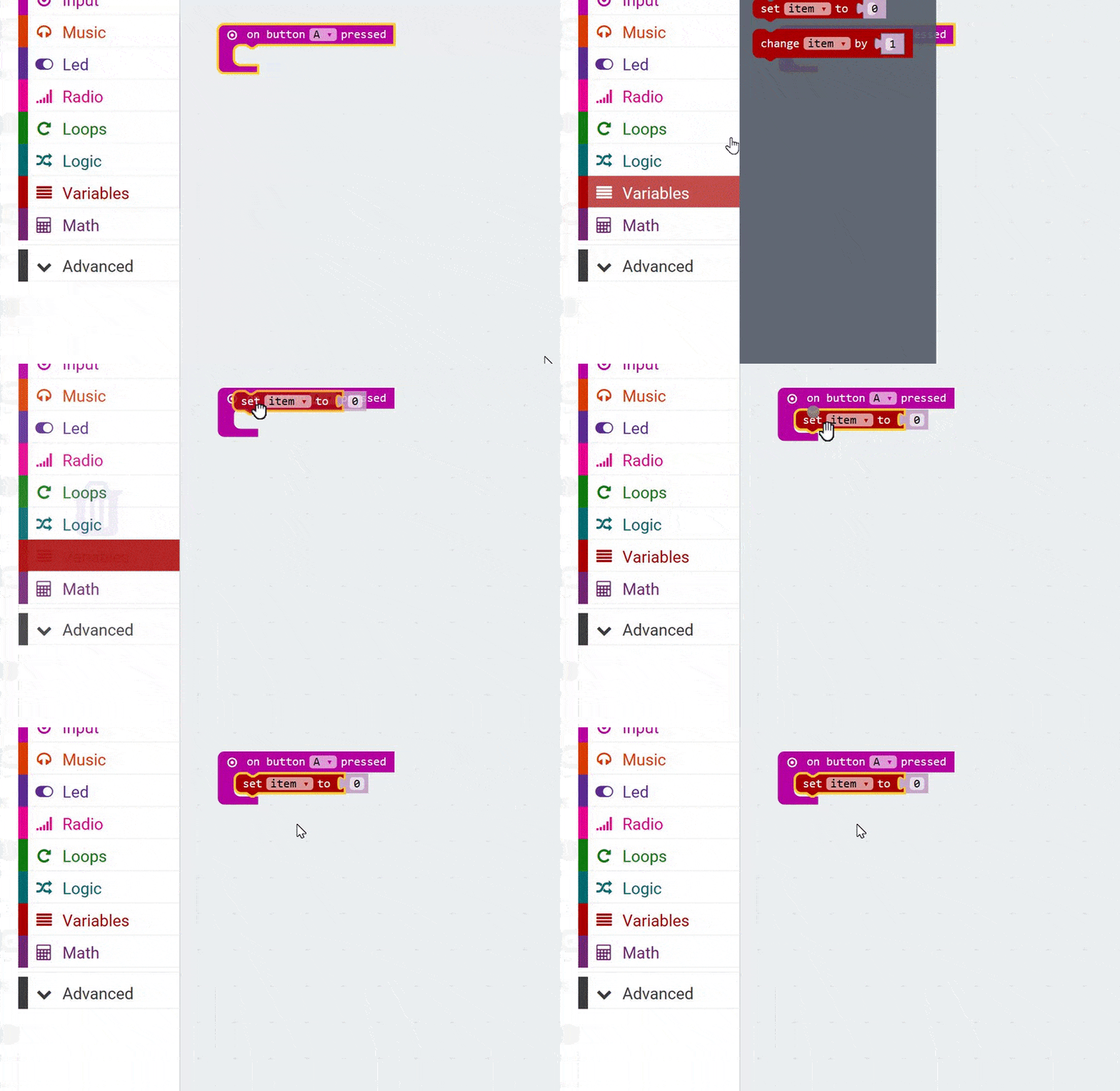
Let’s grab a Set Item to 0 block from the Variables menu.
If you click the dropdown arrow next to the word item, there’s an option there to Rename Variable to something a bit more memorable. I’m going to do this now, and I’m going to call this player 2 picked which will represent the micro:bit’s decision. You can call this whatever you like, but you may want to go with my choice to make it easier to follow along.
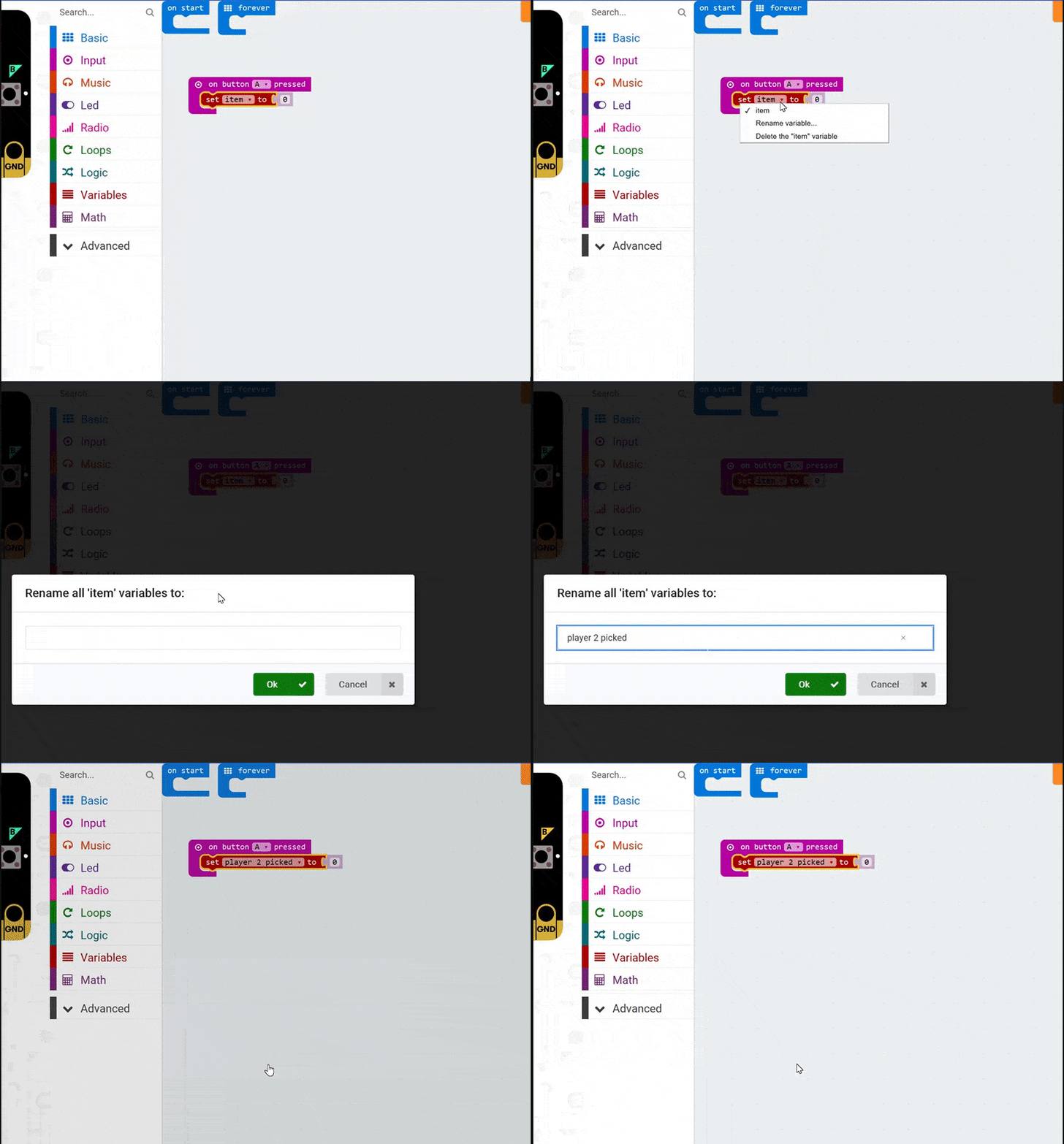
Let’s rename our variable to player 2 picked so we can reference it in our code later.
Now what I’m going to do is generate a random number. I want there to be three possible numbers. One will represent rock, one paper, and the final number will represent scissors.
So, I’m going to click on the Math menu and grab Pick Random 0 to 4, and I’m going to drag that into the empty space in my variable code.
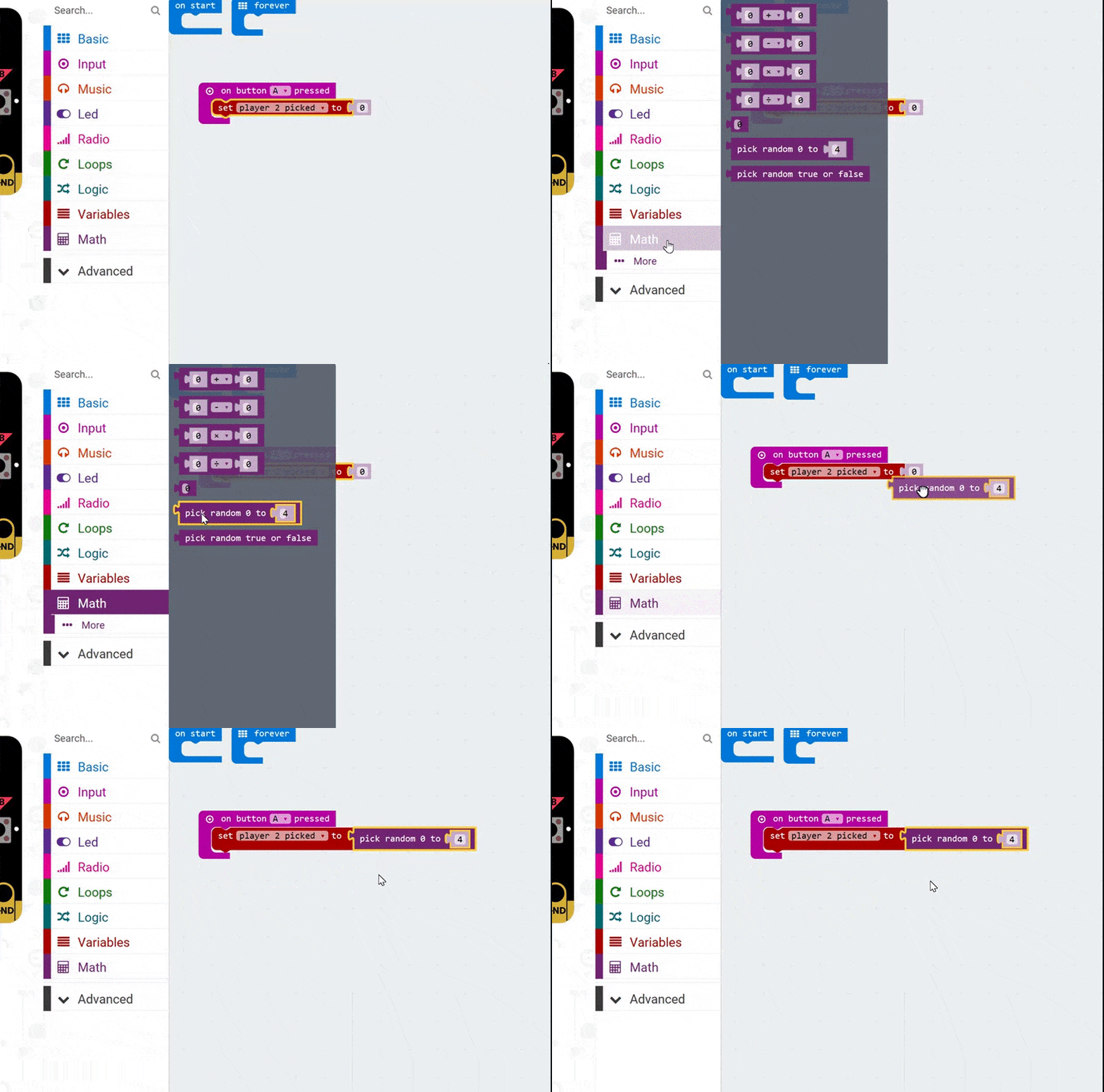
Let’s set up our variable using the Pick Random 0 to 4 block from the Math menu.
Now, in coding, we always count from 0. So the current code will actually give us five possible numbers – 0, 1, 2, 3 and 4. So we’re going to change the number 4 in our Pick Random 0 to 4 block, and we’ll change it to a 2. Now, we’re getting three possible numbers – 0, 1 and 2.
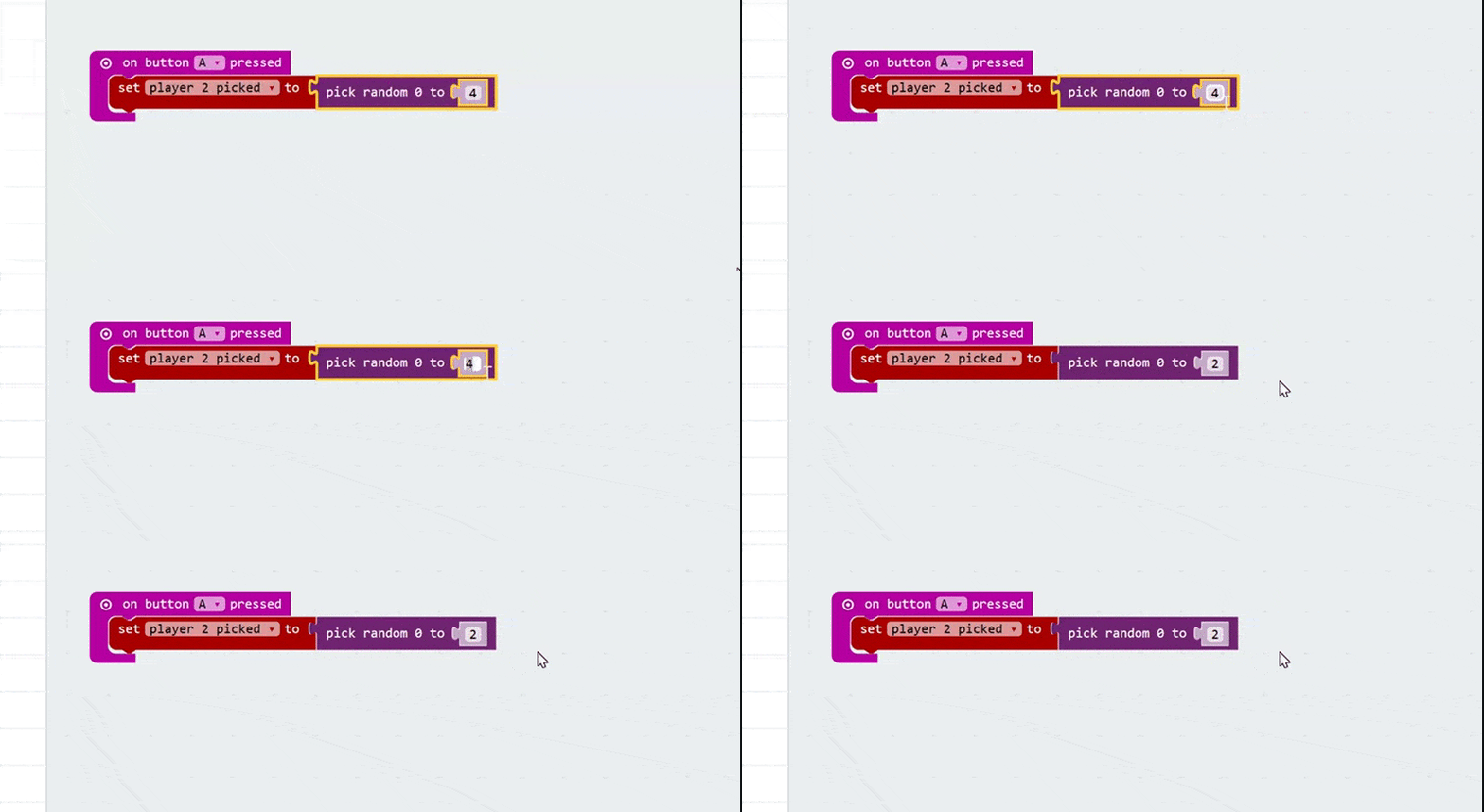
Changing the 4 to a 2 gives us three possible numbers in our Pick Random code… 0, 1 and 2.
Now we’re half way there!
We are getting three possible outcomes (0, 1 and 2). All we need to do now is react to those outcomes and draw either a rock, paper, or scissors icon on the screen.
For this, we’re going to use some logic. Essentially, we’re saying:
If the random number (which we’ve called player 2 picked) is 0, draw a rock.
If it is 1, draw paper.
If it is 2, draw scissors.
So, let’s build that with code.
First of all, let’s click on the Logic menu and grab an If True, Then block and drop that under our current code. We’re going to adjust this so it asks If “player 2 picked” is 0. To do this, let’s click on Logic again and grab a 0 = 0 block. We’re going to drop this over the word true.
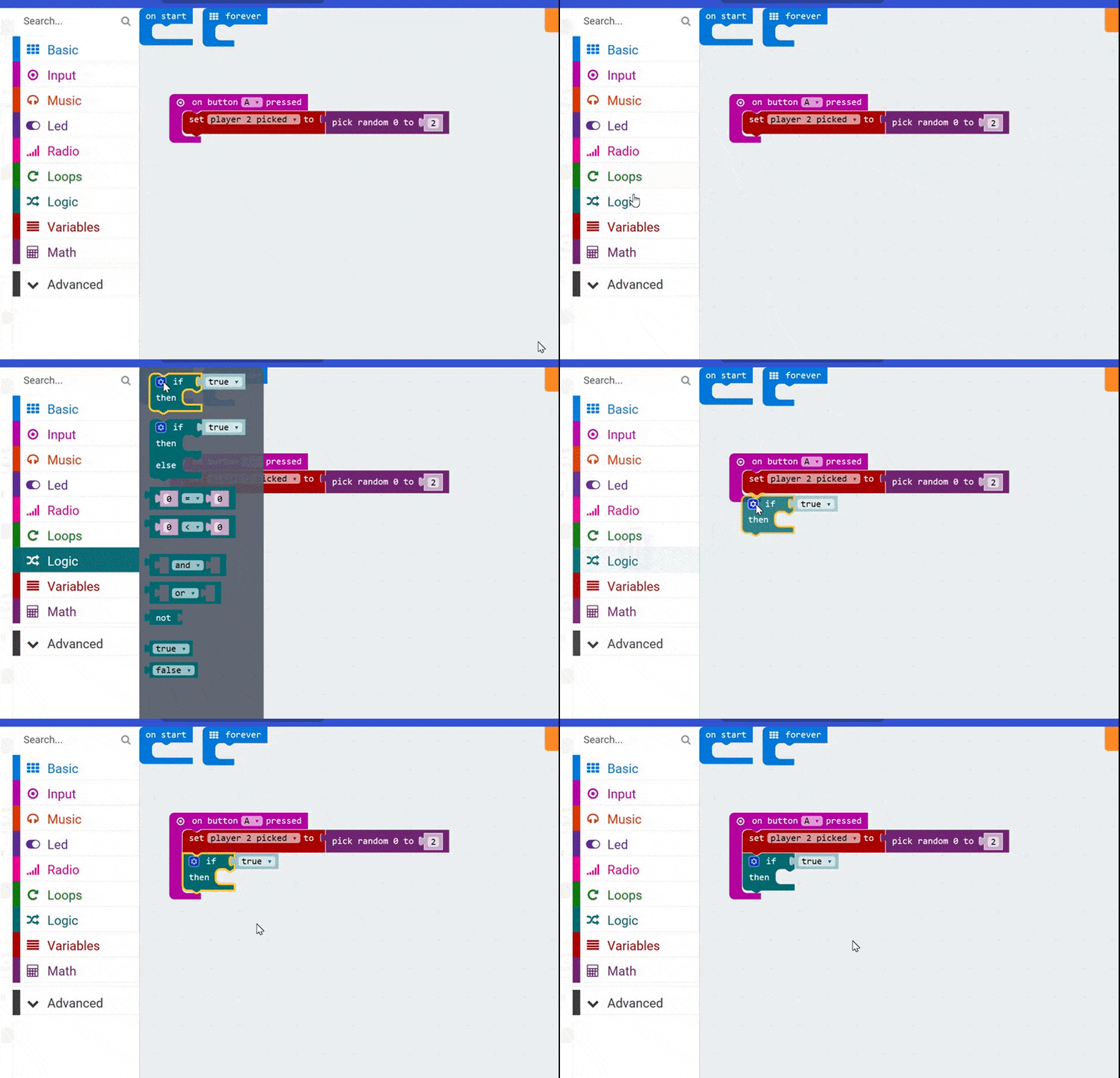
We’re going to start building the logic that reacts to our Pick Random code and displays one of three pictures (rock, paper, or scissors). Grab an If True, Then block from the Logic menu.
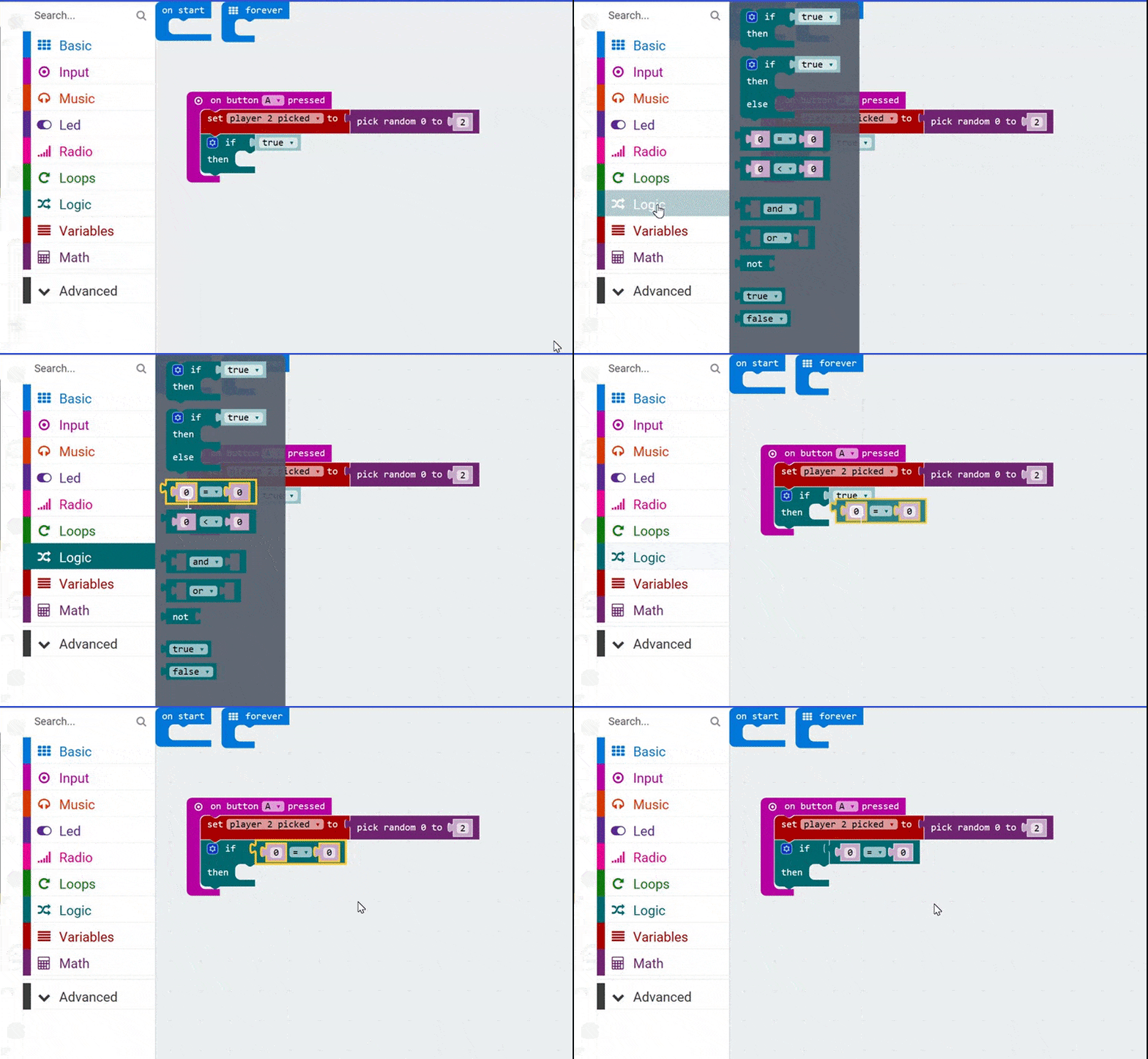
Now let’s add a 0 = 0 block from the Logic menu. We’re going to drop this over the word true to continue building our logic.
Now, we need to replace those two 0s.
First, we’re going to click on our Variables menu. You’ll see there is a block of code there called Player 2 Picked. When we created our variable earlier, the micro:bit editor generated this new menu item for us! Let’s grab it, and drop it over the first 0.
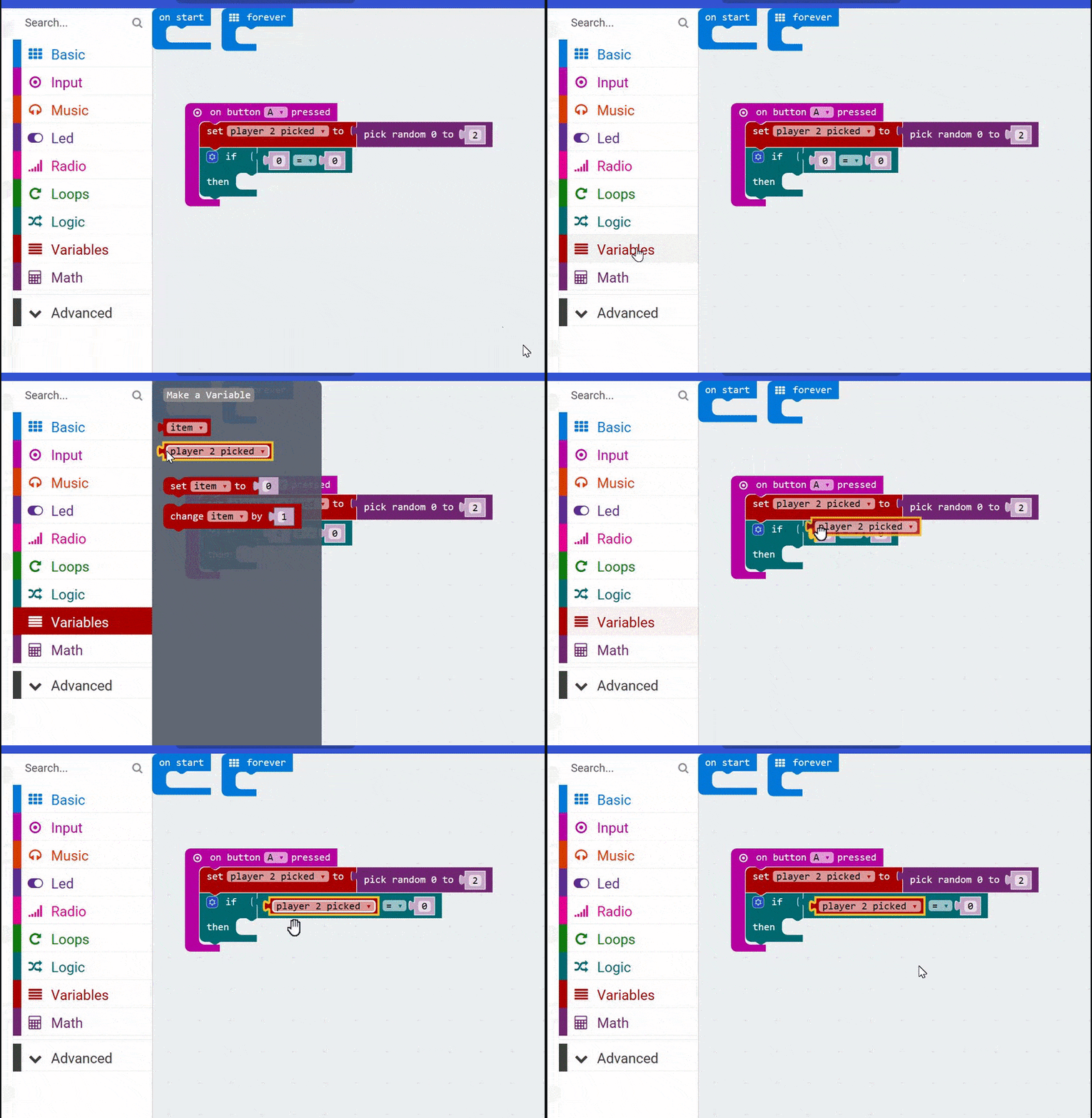
Let’s drop our Player 2 Picked block from the Variables menu so it replaces the first 0 in the 0 = 0 block.
For our first check, we want the second 0 to be 0, so we can leave it alone! When we check for paper, later, then we’ll change that second 0 to a 1. And, for scissors, it will be a 2.
Now we can put some code in there to draw the Rock! Just like we did on the two-player version of this game. So, let’s click on Basic and grab our trusty Show LEDs block, and put it inside our If block of code, next to the word Then. Now, you can draw a rock!
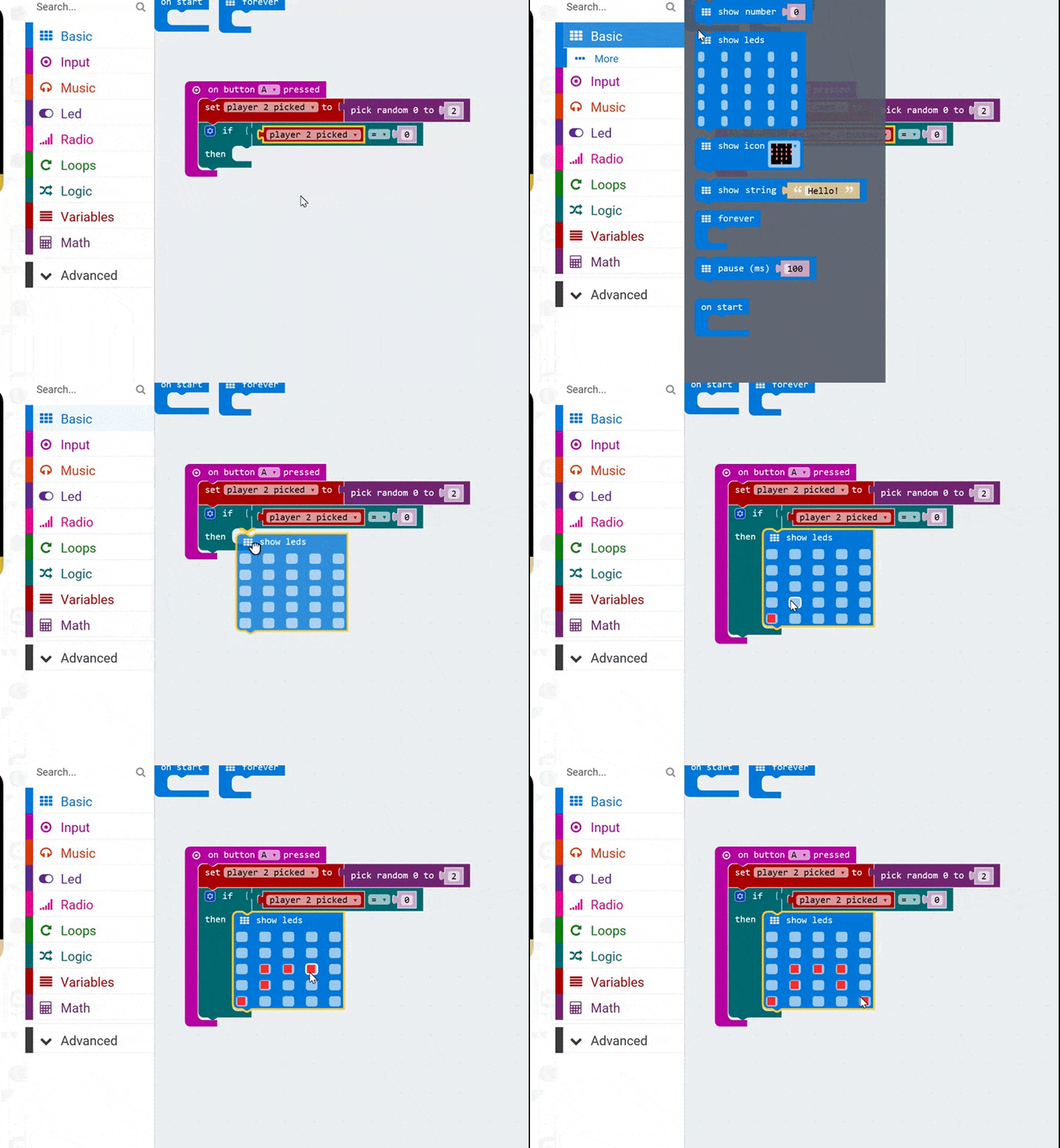
Let’s use a Show LEDs block from the Basic menu to build the graphic for the rock!
See if you can code up two more If True, Then blocks. Take a look at my code below as a starting point, if you need to. I’ll post my solution underneath!
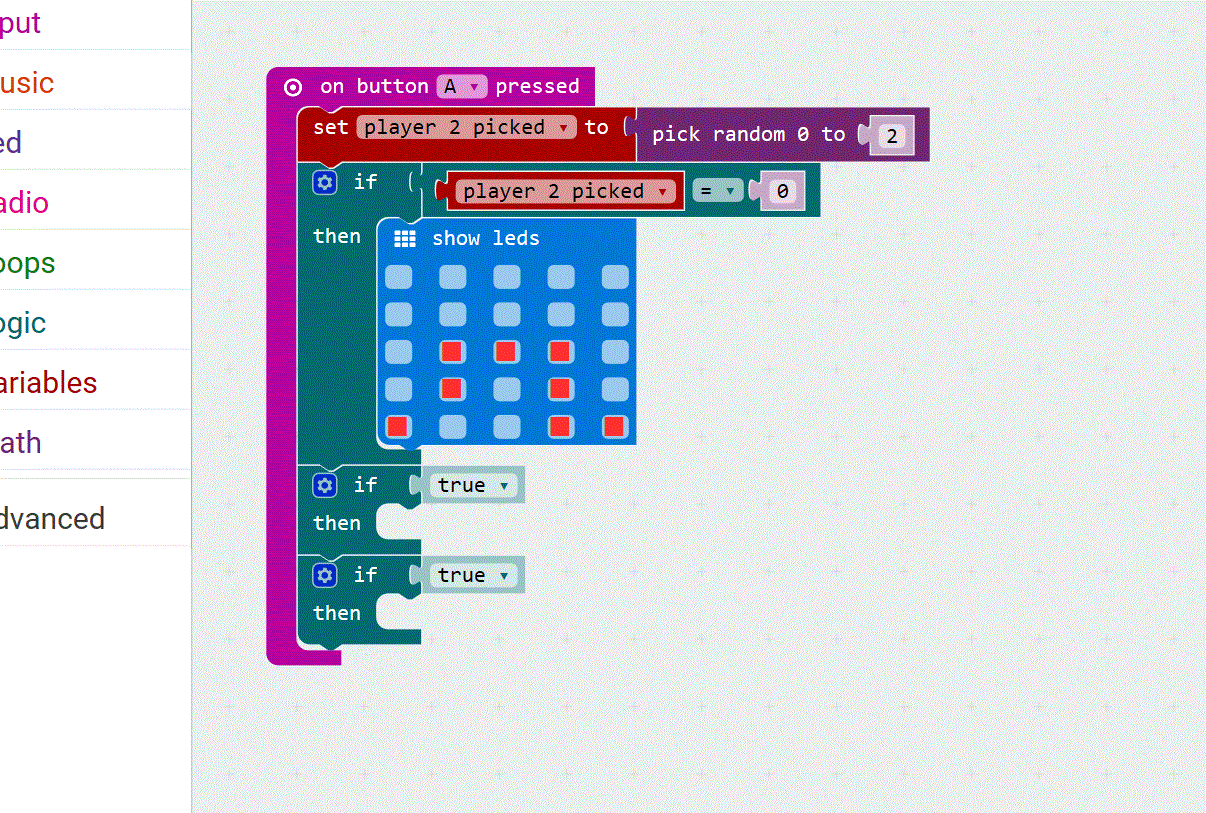
See if you can use my code as a starting point to complete the coding on this game.
.
.
.
.
Here is my solution…
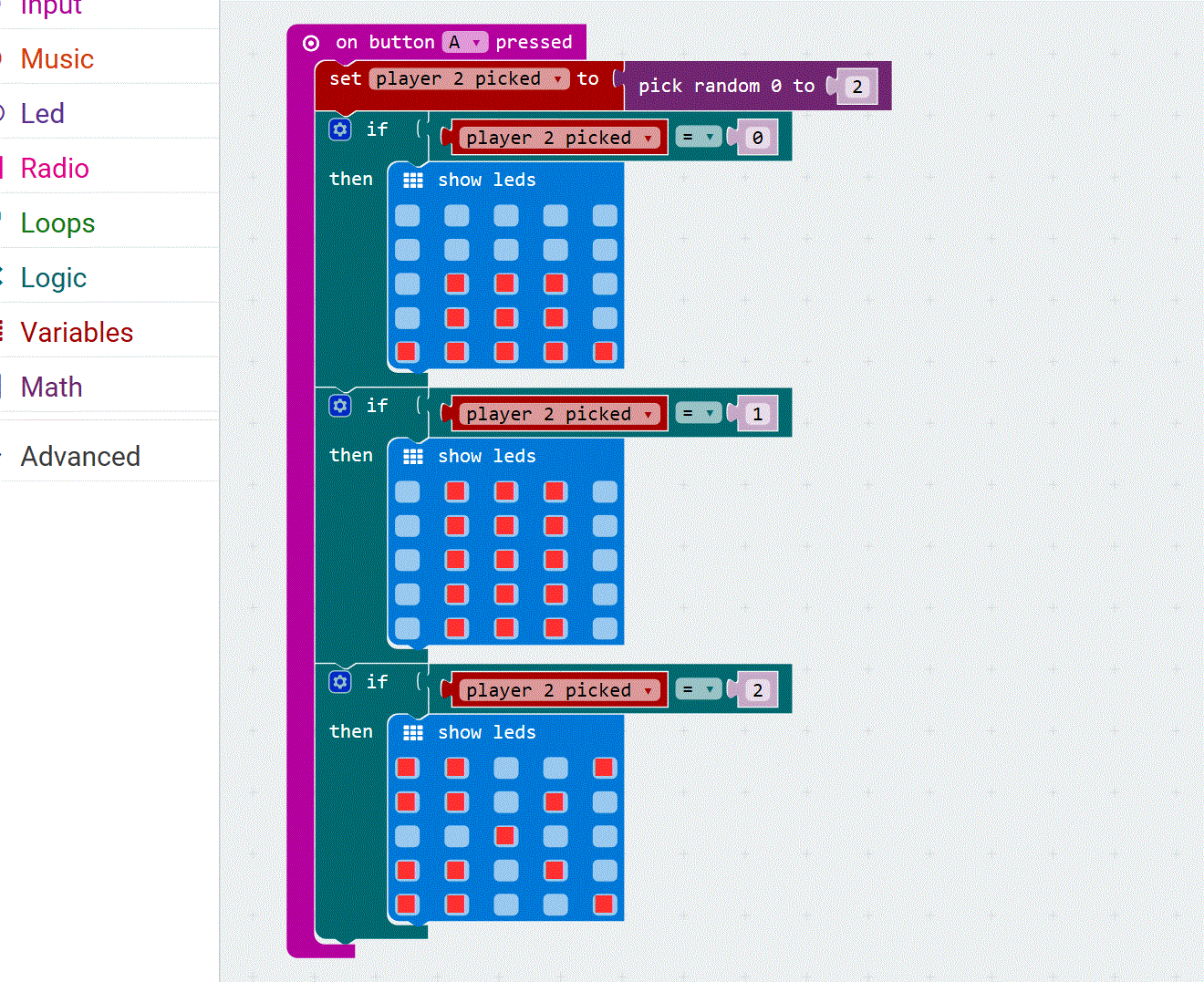
My finished code!
You can now play a game of Rock, Paper, Scissors against your micro:bit!
Just say “1, 2, 3, GO!” and when you say “Go!” press the A button on your micro:bit as you play your own move using your hand and fingers!
If you want a couple of ways you can make this better, you could introduce a pause before the micro:bit plays its move. You could also have the B button clear the screen afterwards!
Congratulations, you’ve now made a game that simulates artificial intelligence! The game plays as if the micro:bit is making a conscious decision as it is trying to beat you! What other games could you code using random numbers and gaming logic?
Share you ideas in the comments if you have some suggestions!