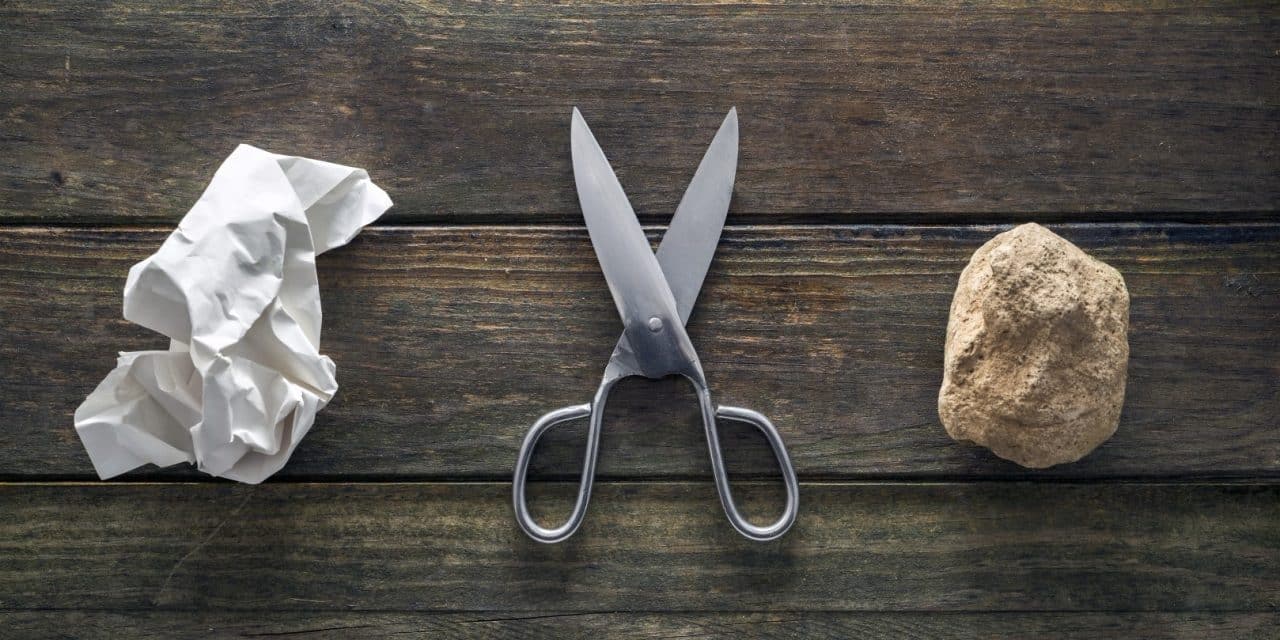
In this two-part project, we’re going to create two version of the popular Rock, Paper, Scissors game for the BBC micro:bit. Our first version will be a two-player version allowing you and a friend to use a micro:bit each. During this project, we’ll create a really simple Rock, Paper, Scissors app using inputs and the LED screen. Later, we’ll develop this into a game which you can play, single-player, against your micro:bit!
Part 1: The Two-Player Game
This first version of Rock, Paper, Scissors will be a two-player game. You can a friend can code up this app using a micro:bit each. Then, when you’re ready to play you can hold the micro:bit out infront of you. When you’re ready to have a turn, you can count down… 3… 2… 1… And then press a button on your micro:bit. One button will represent rock, another paper, and pressing both buttons together will select scissors.
Let’s code up a button to represent the rock move first. A button is a way of getting information into a device. Think about a mobile phone, or tablet. They have lots of inputs… Typically they have touchscreens, buttons, microphones, cameras, and many other sensors inside the device too. They also have outputs – a way of communicating back to the user and getting information out of the device – such as speakers, screens to display information, and maybe they vibrate to let you know something is happening.
So a button is an Input. We can grab an On Button A Pressed block from the Input menu and we can drop that anywhere in our coding space.
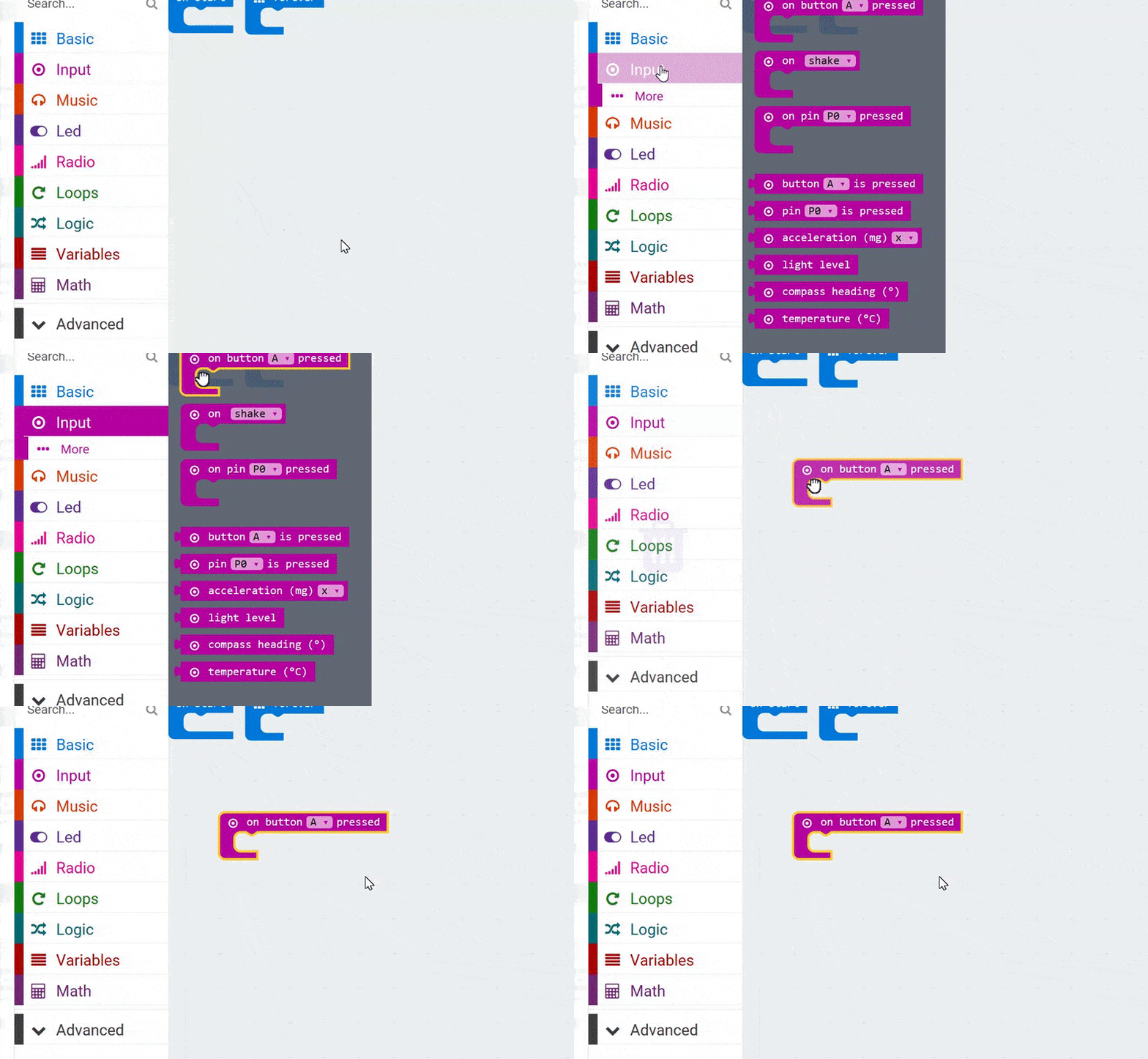
Let’s grab an On Button A Pressed block from the Input menu.
Any code we drop within this block will run, in sequence, when we press the A Button on our micro:bit.
We can use the screen to display a graphic that looks like a rock. So let’s use our Show LEDs block, from the Basic menu. As we drag the new block into our On Button A Pressed block, you’ll see a yellow glow to indicate we can snap these two blocks together.
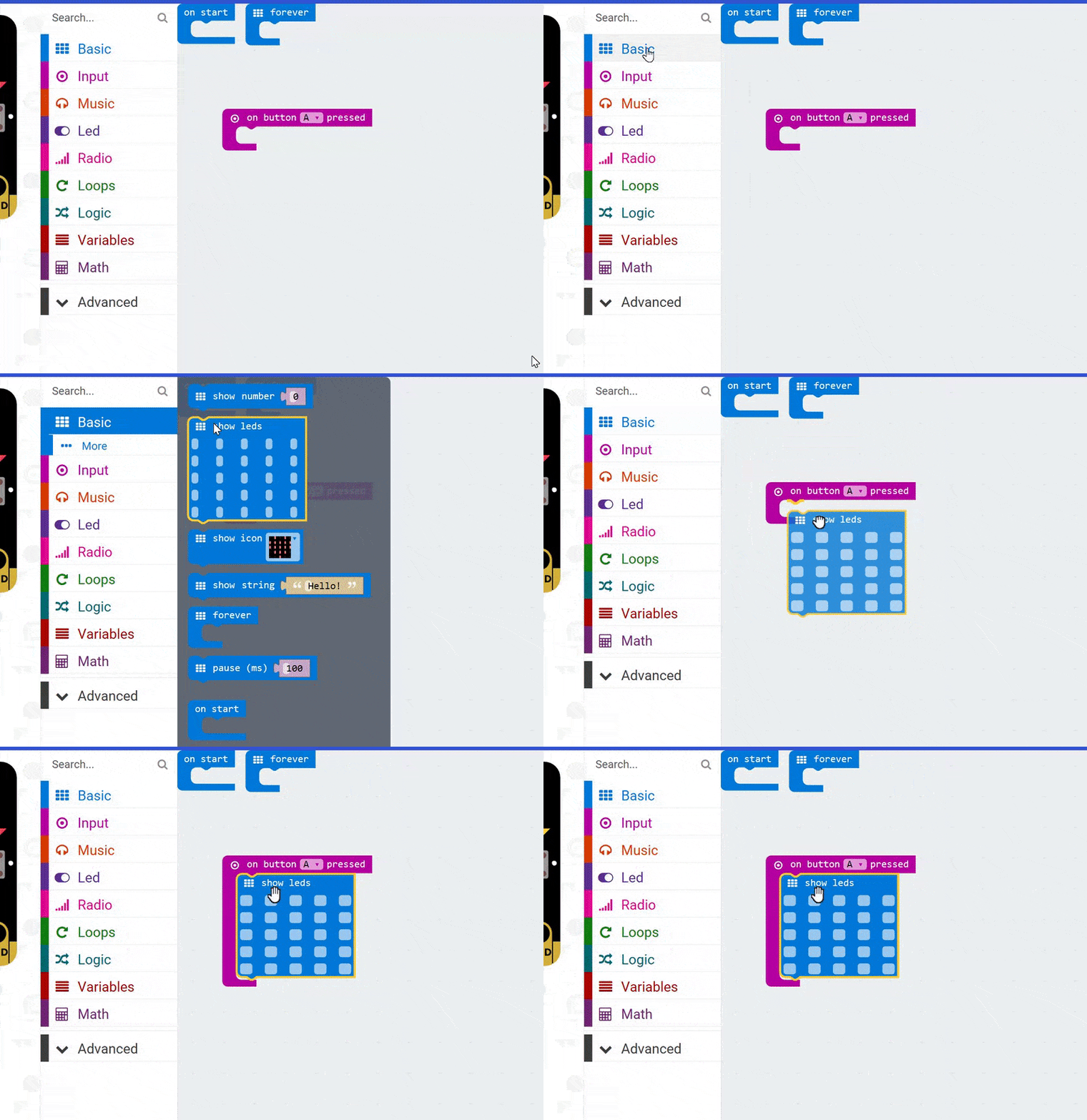
Let’s grab a Show LEDs block and connect it to our On Button A Pressed code.
The Show LEDs block allows us to tick which LED lights we want on, or off, on the micro:bit’s screen. So we can tick some of the boxes to make a rock-like shape.
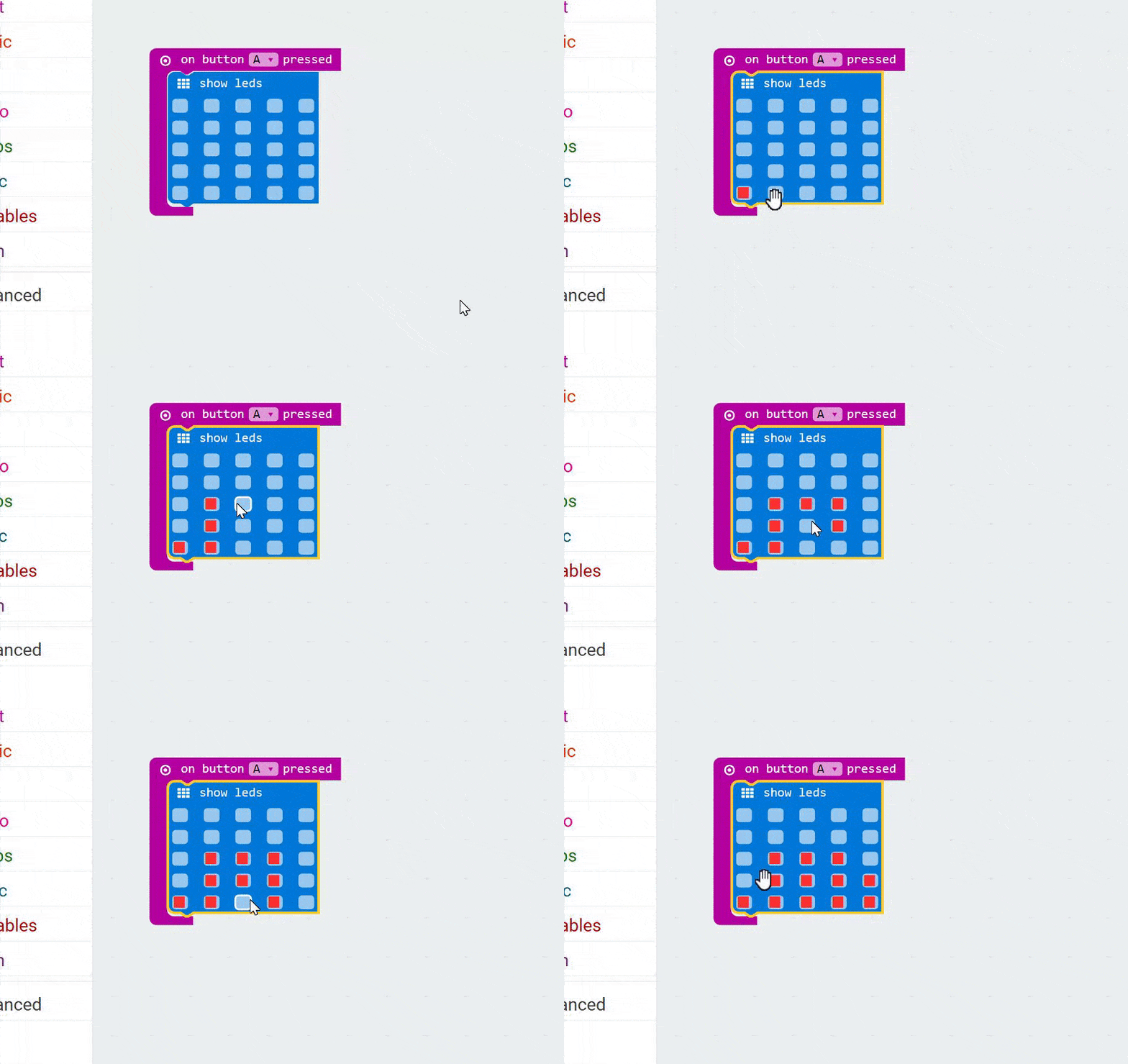
Tick boxes in the Show LEDs block to make a rock-like image.
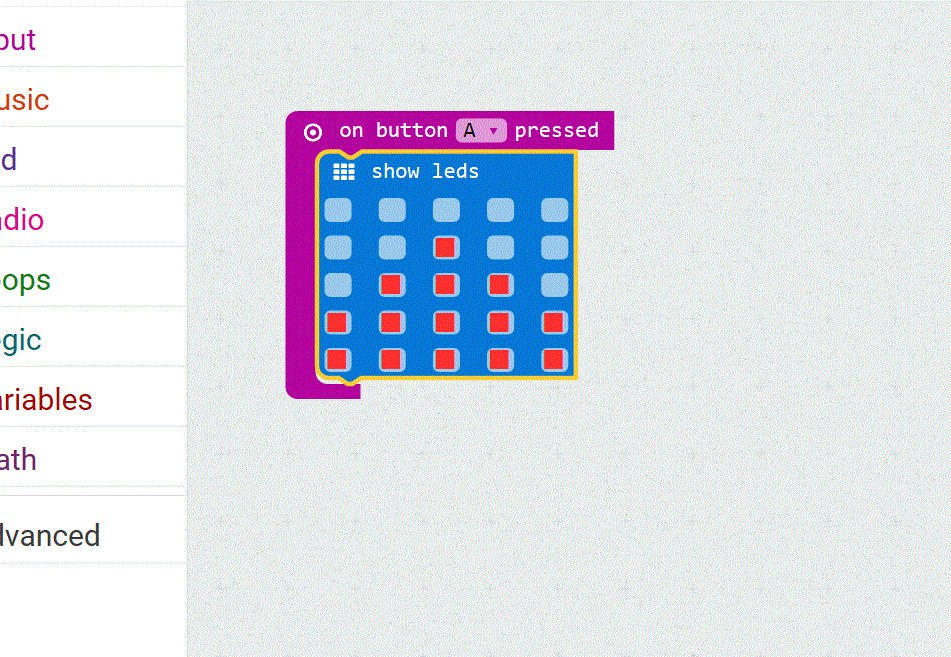
My finished rock graphic.
Awesome!
Now, we can test our code by clicking the A Button on the micro:bit emulator cliquez pour plus d’infos.
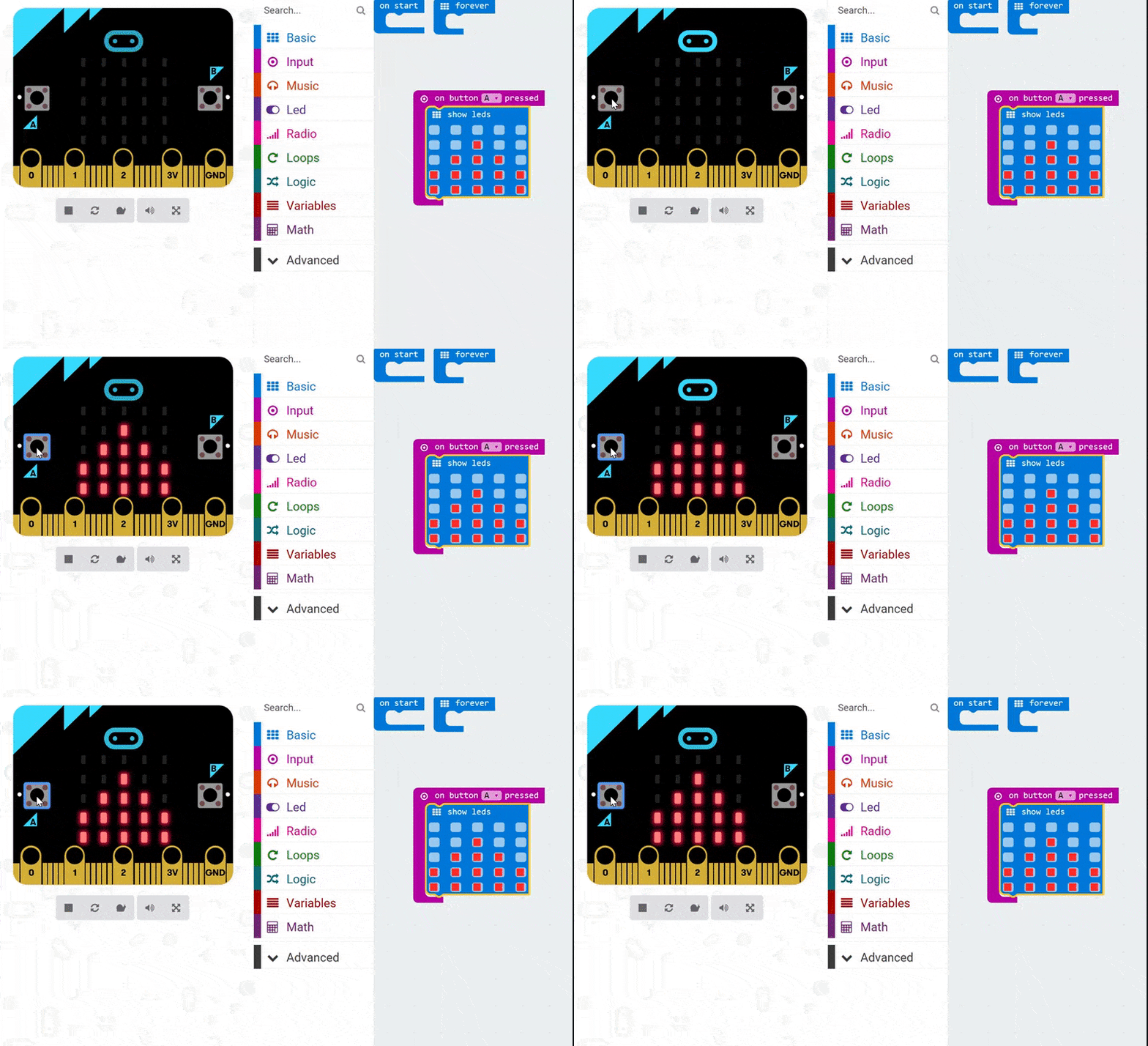
Let’s test our code so far. Click the A Button on the micro:bit emulator.
Amazing!
What we can do now is grab another On Button A Pressed block from the Input menu. This will be the code to call for paper.
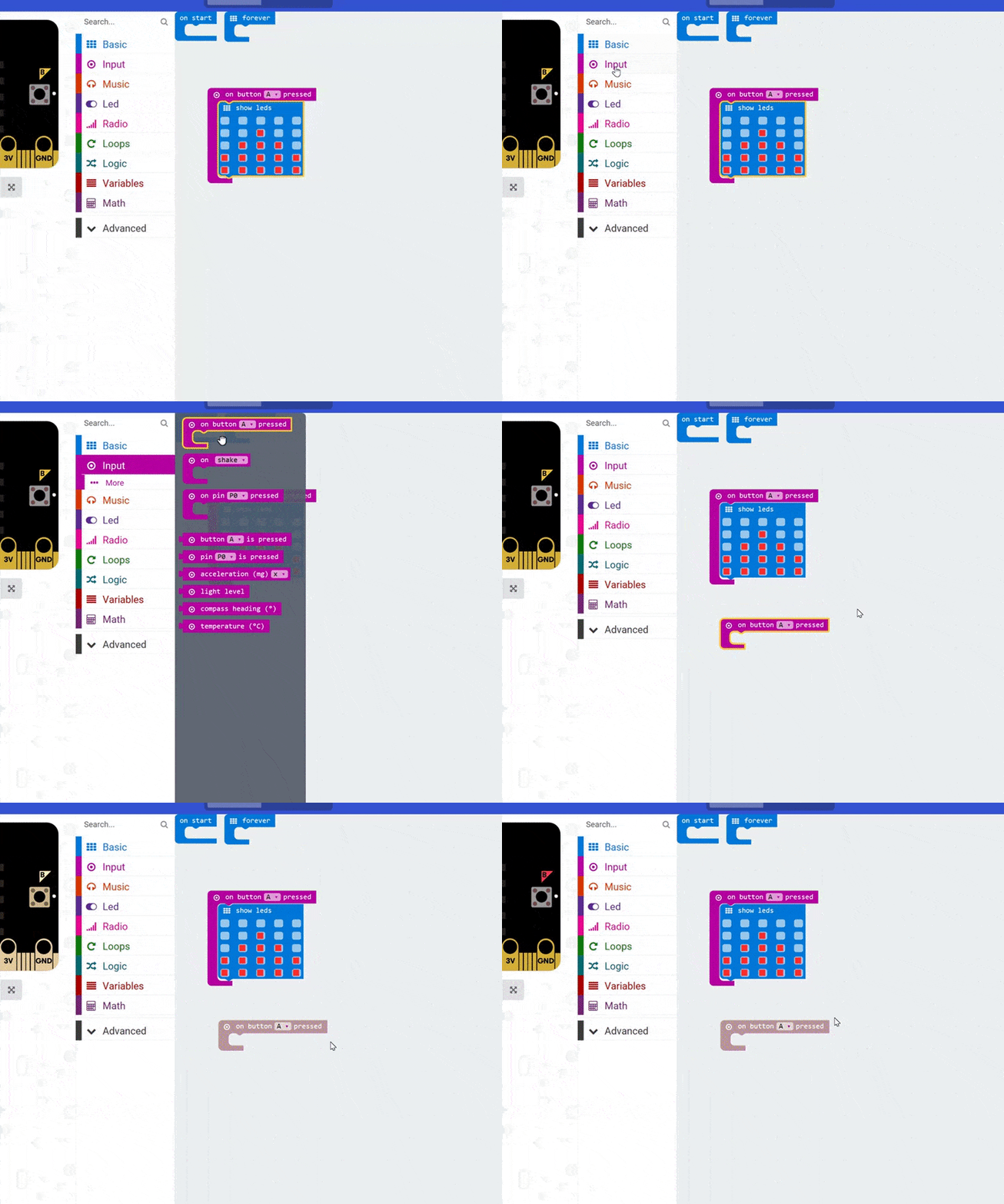
Let’s grab another On Button A Pressed block from the Input menu.
Did you notice our new block went a funny colour when we placed it? That’s because we already have an On Button A Pressed block, and we can’t have two conflicting blocks of code. So we’re going to click the small dropdown arrow next to the letter A, and we’re going to change our code so it says On Button B Pressed instead!
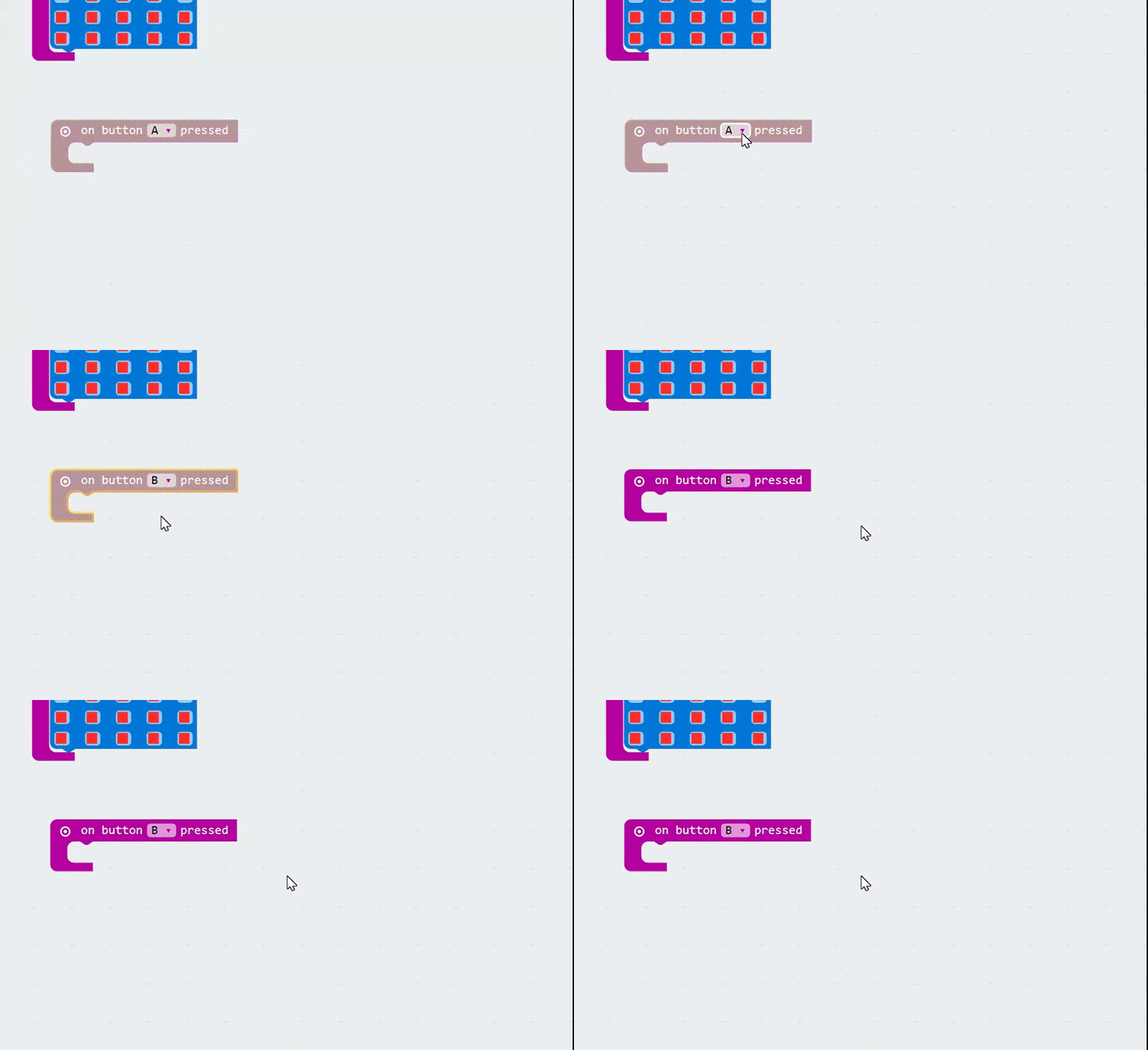
Let’s change our new code so it says On Button B Pressed instead.
There we go, that fixed it.
In fact, let’s grab another On Button A Pressed block from the Input menu, and let’s change this third block so it says On Button A+B Pressed. This will be our scissors code, and this will work if we press both the A and B button on the micro:bit at the same time!
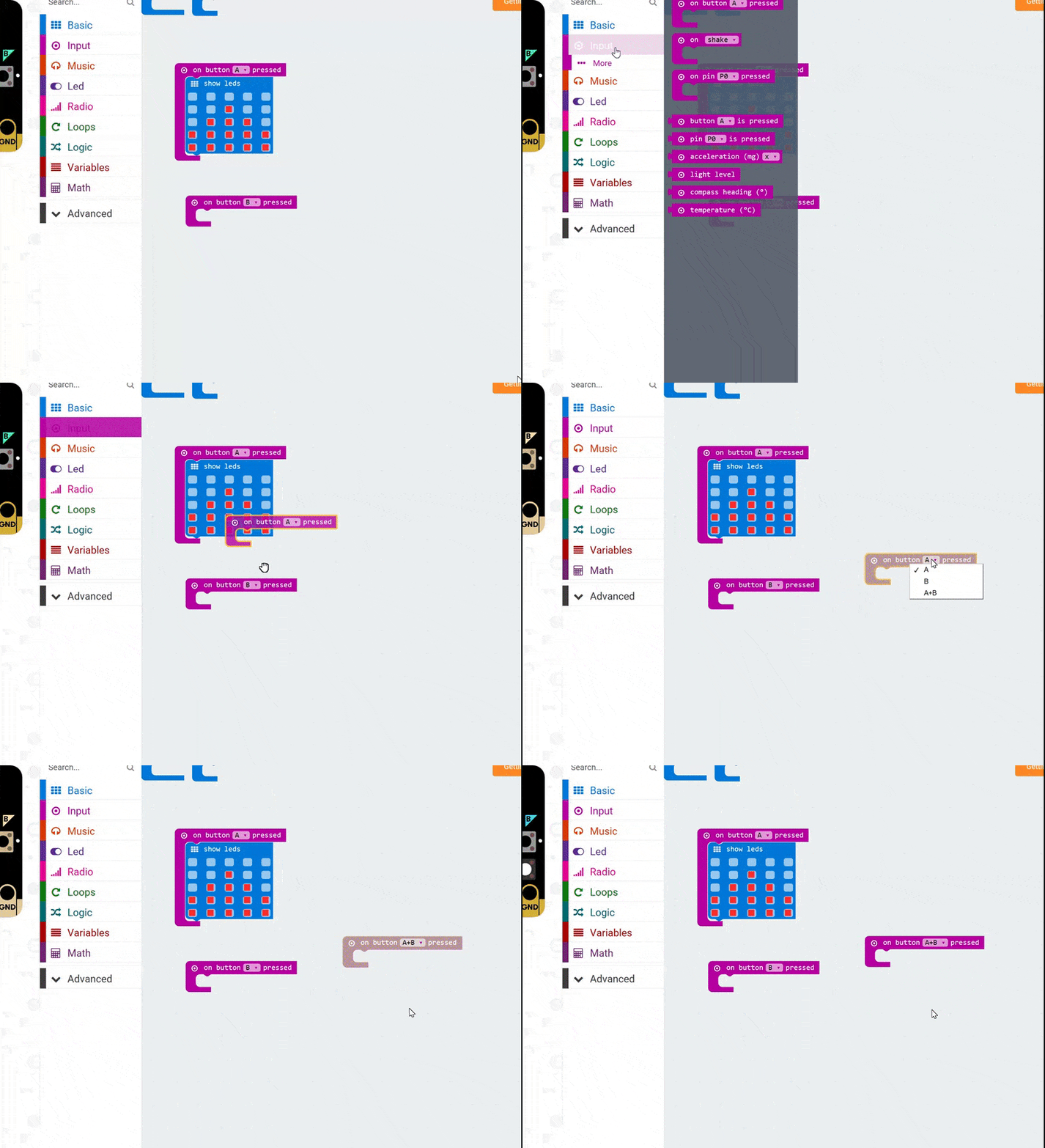
Let’s grab another On Button A Pressed, which we’ll change to A+B. This will draw a picture of a pair of scissors when pressed.
Now you can grab a Show LEDs block for each of these new Input blocks and draw a picture that represents paper and a picture that represents scissors. See if you can figure this out yourself, and then look at my finished code below. Your drawings may look different, and probably way better, than mine!
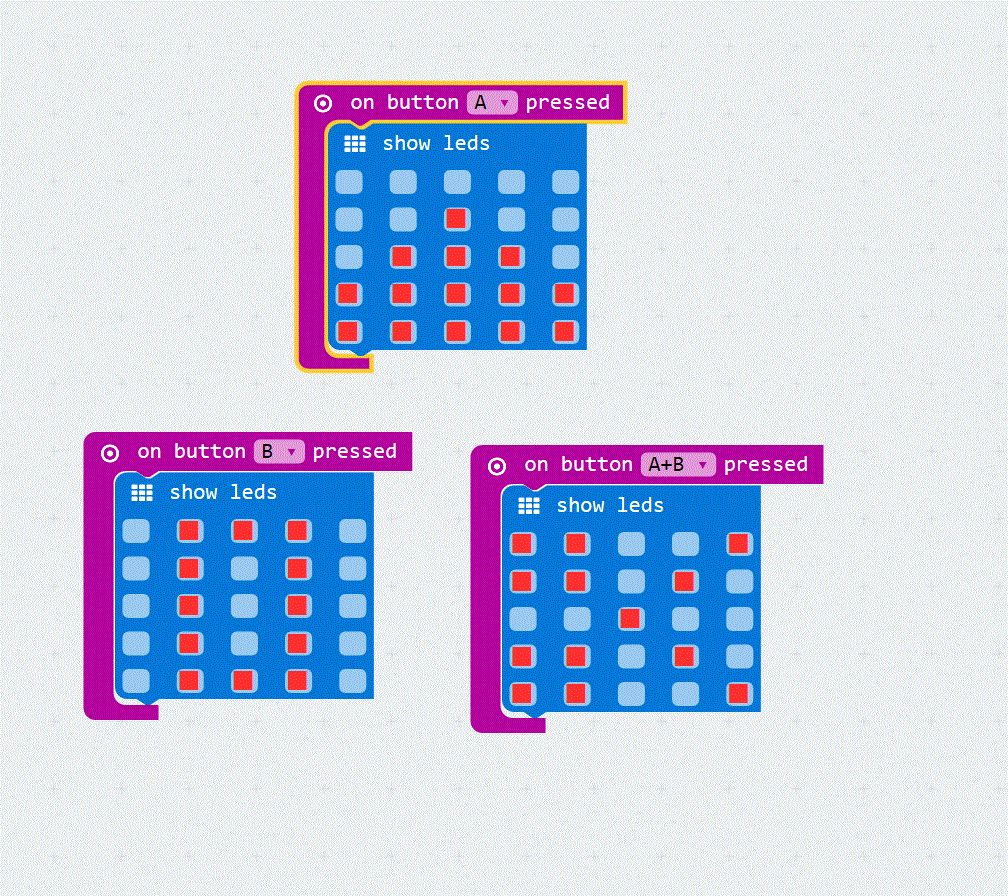
My finished code! Does your look similar?
Now you’re ready to test your game! Download your code onto your micro:bit (if you’re not sure how, here’s a guide) and have a friend do the same. You can now play a game of Rock, Paper, Scissors against your friend by pressing one of the three button combinations.
Next, we’re going to build a one-player game where you can play against your micro:bit!